
How to Subscribe to Public Calendars on iPhone & iPad
Before you proceed with the following procedure, you’ll need the calendar URL to the public calendar that you want to the Calendar app. Once you have that ready, here’s what you need to do:
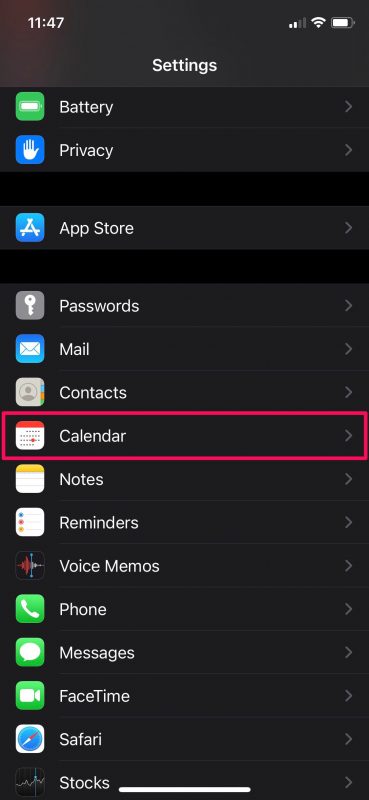
- Head over to “Settings” from the home screen of your iPhone or iPad.

- In the settings menu, scroll down and tap on the Calendar app to configure settings for the Calendar app.
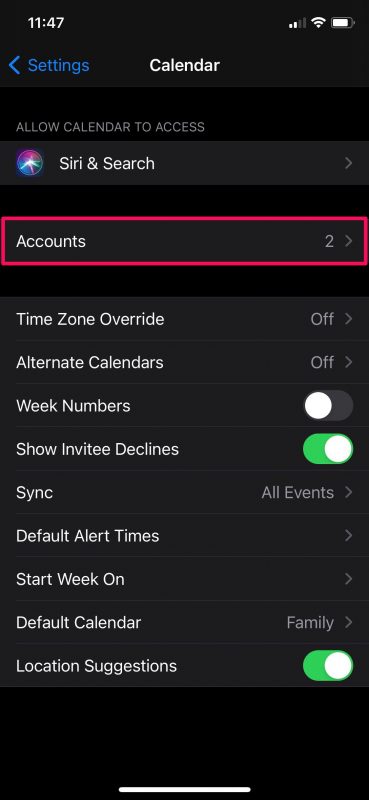
- Here, tap on “Accounts” to manage your Calendar accounts.
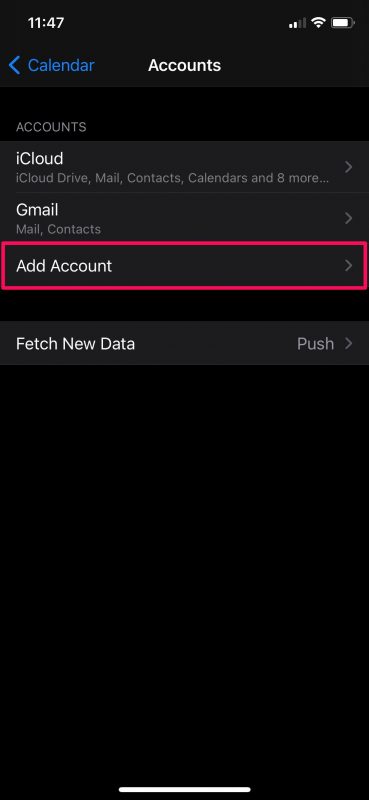
- Now, you’ll need to tap on “Add Account” to add a new public calendar.
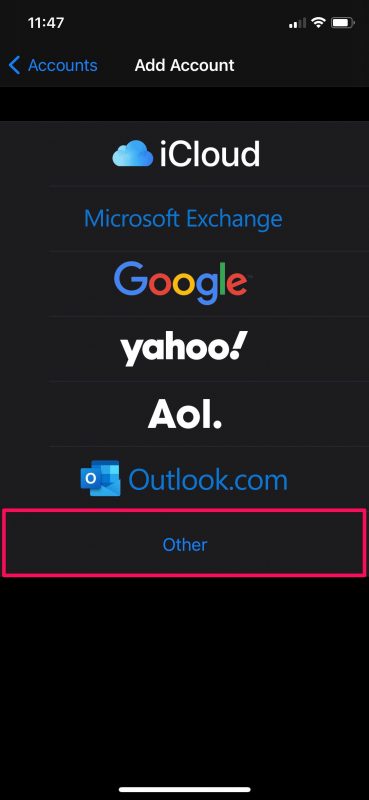
- You’ll see a bunch of different email service providers in this step. Select the “Other” option to proceed.
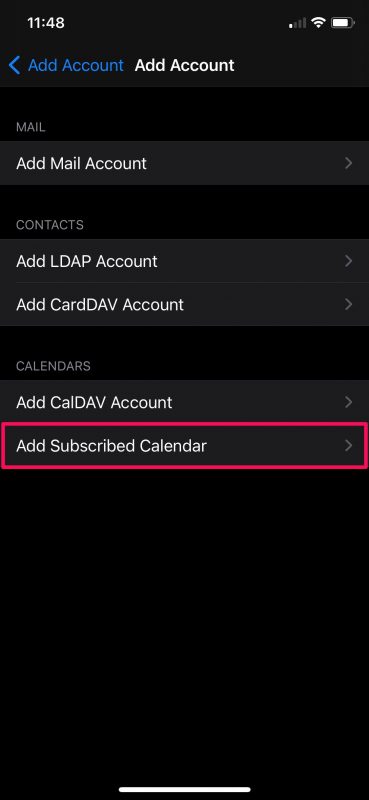
- Next, tap on “Add Subscribed Calendar” which is the last option in the menu under Calendars.
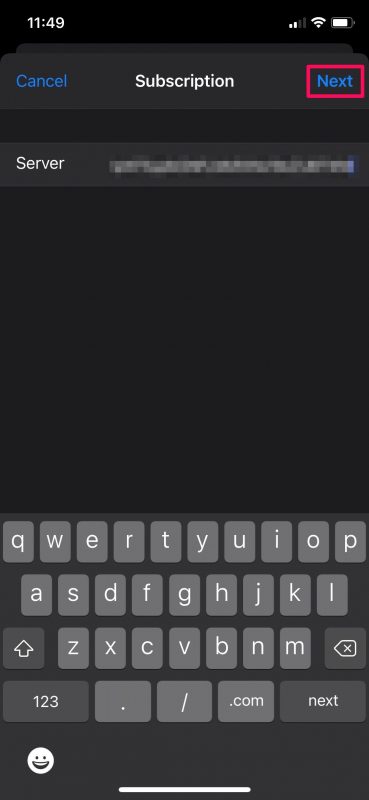
- Now, you’ll need to copy the Calendar URL below and paste in the Server field and tap on “Next” to continue to the last step.
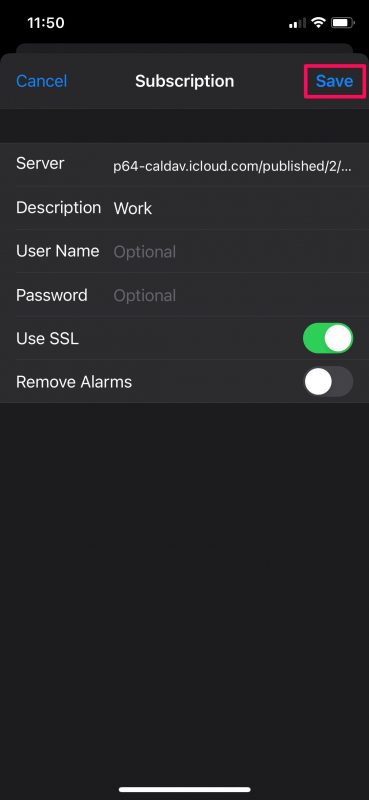
https://calendar.google.com/calendar/ical/c_997bcd841affcc4ebaa8628c3fe611b9f5b48739ce24378eeaec145b1f6bc362%40group.calendar.google.com/public/basic.ics - In this menu, you can enter a description of your choosing and leave all other settings as the defaults.

There you go, you’ve subscribed to a public calendar using your iPhone or iPad.

Contact Details
P: (03) 443 8389
E: info@mchw.co.nz
Montessori Children’s House Wānaka
122 Kings Drive
Wānaka 9305
OPENING HOURS
Monday – Friday: 8.30am – 3pm